
Google Docs is free, saves as you type, and works on any computer you can sign in on, which makes it one of the easiest places to make a resume. You can start from a template in Google’s gallery, copy a ready-made template, or build one from a blank page. Then the work is the same either way: fill in each section, tidy the formatting, and download a file you can send.
How to make a resume on Google Docs: open Google Docs, click Template gallery at the top right and pick a resume (or open a free template with Make a copy). Rename the file, replace the sample text section by section, check margins and fonts, then click File → Download → PDF Document to save a copy to attach.
Step 1: Open a resume template in Google Docs
You have two good starting points.
Google’s Template gallery. Per Google’s template help page, go to Google Docs on your computer, click Template gallery at the top right, and click the template you want. A copy opens in your own Drive. Scroll to the Resumes section to see the resume designs. If you already have a document open, File → New → From a template opens the same gallery.
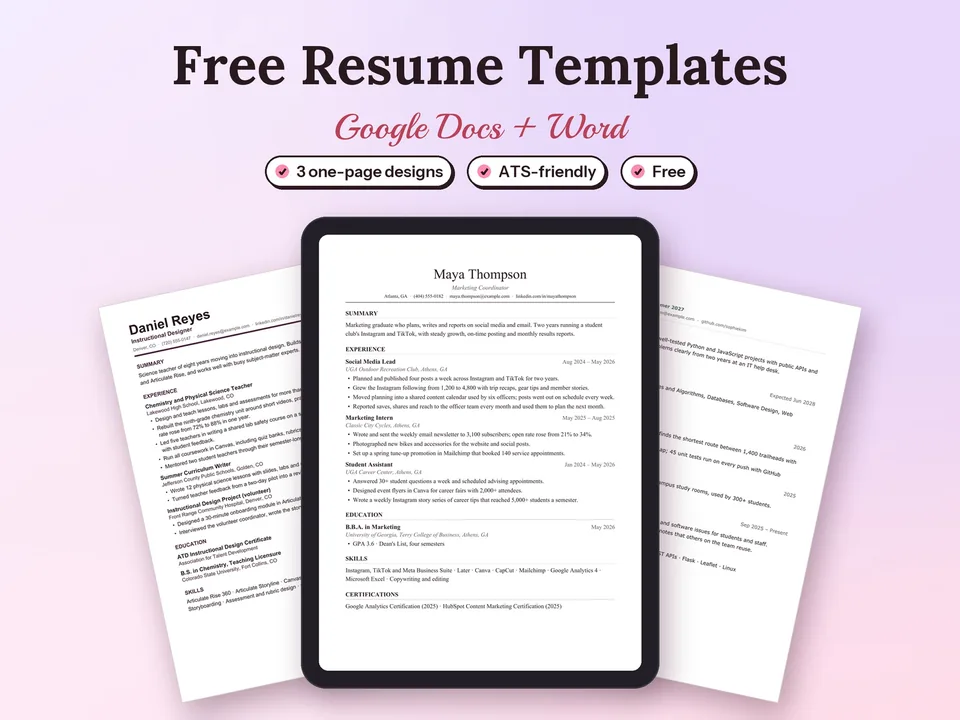
Our free Google Docs resume templates. Our free resume templates come in three one-page, single-column designs: Classic (Times New Roman), Modern (Arial) and Minimal (Verdana). Sign in to Google, click Make a copy in Google Docs next to the design you like, and confirm with Make a copy. The copy opens in your Drive, ready to edit, and each design also comes as a Word file.
Prefer a blank page? Click Blank document and build the sections yourself in the order shown in Step 3.
Step 2: Rename the file
Click the file name at the top left (it starts as the template’s name) and type a professional one: Maria Lopez Resume or Maria Lopez Resume - Marketing Coordinator. Recruiters see the file name when you attach it, and your name in it keeps your resume easy to find in their downloads folder.
Step 3: Fill in each resume section
Work down the page and type over the sample text, so the template’s fonts, spacing and bullets stay in place. A complete resume has five sections, in this order for most people:
- Contact details: full name in bold, then phone, email, city and state, and a LinkedIn or portfolio link.
- Summary: two or three lines on who you are, your key skill or years of experience, one result, and the role you want.
- Experience: job title, employer, city and dates, with three to five bullets per role, most recent first. Start each bullet with a verb and end with a result.
- Education: degree, school, graduation year.
- Skills: software, tools, methods and languages, using the job post’s own words.
Students and new graduates can move Education above Experience. For what belongs in each section, and what to leave off, see our guide on what to put on a resume.
To delete a section you don’t need, select it from the heading to the last line and press Delete. To add one, copy an existing heading and its first bullet, paste below, and type over it, so the new section matches the rest.
Step 4: Check the page setup and margins
Resumes need the Pages format, which shows page breaks and lets you set margins. Google’s page setup help gives the steps: click File → Page setup, select Pages at the top of the dialog, and click OK. In the same dialog you can set the paper size (Letter for the US and Canada, A4 for most other countries) and the margins.
Margins of 0.5 to 1 inch keep the page readable. If your resume runs a few lines onto a second page, trim the margins toward 0.5 inch before you shrink the font.
Step 5: Format your resume so it reads cleanly
A few Google Docs settings make the difference between a page that looks finished and one that looks typed:
- Fonts: stick to one plain font such as Arial, Calibri, Georgia or Times New Roman, with body text at 10 to 12 points and your name a few points larger.
- Headings: apply the same style to every section heading. Select one, format it, then use Format → Paragraph styles → Heading 2 → Update ‘Heading 2’ to match, and apply Heading 2 to the rest.
- Bullets: use Format → Bullets & numbering for real bullets instead of typed dashes, so they line up when text wraps.
- Spacing: set line spacing in Format → Line & paragraph spacing. Single spacing with a little space after each section keeps one page from feeling crowded.
- Alignment: right-align dates with a tab stop rather than spaces, so they stay lined up down the page.
- One column: applicant tracking systems (ATS), the software employers use to collect applications, read a resume as plain text from top to bottom. A single column of real text arrives in the right order. Some gallery designs place sections in tables or side columns, so check the finished file with our free ATS resume checker, which shows the text an ATS pulls from your resume.
Step 6: Download your resume as a PDF or Word file
When the resume is ready, click File → Download and choose a format:
- PDF Document (.pdf): the best choice for most online applications and email. Your fonts and spacing look exactly as you set them.
- Microsoft Word (.docx): for applications that ask for Word, or recruiters who want to edit. Open it once in Word to check the spacing.
The file saves to your computer’s Downloads folder. Open the PDF before sending it to make sure everything fits on the page.
Step 7: Share your resume with a link
Some applications, networking messages and job boards accept a link. Google Drive’s sharing help gives the steps: click Share, open the dropdown under General access, choose Anyone with the link, set the role to Viewer, then click Copy link and Done. Viewer access lets people read and download your resume while the edits stay yours.
For most applications, a downloaded PDF is still the safest thing to attach; a link works best in a LinkedIn message or an email to someone you know.
Step 8: Keep a master copy and tailor it for each job
Keep your finished resume as a master file. For each application, open it and click File → Make a copy, name the copy after the job, and adjust the summary and skills to match the job post’s wording. Every version stays in your Drive, so you always know which resume went to which employer.
Make your Google Docs resume today
Making a resume on Google Docs comes down to three moves: start from a clean template, type over it section by section, and download a PDF. Our free resume builder is another route: fill in a form, pick one of the same three designs, and download Word or PDF.
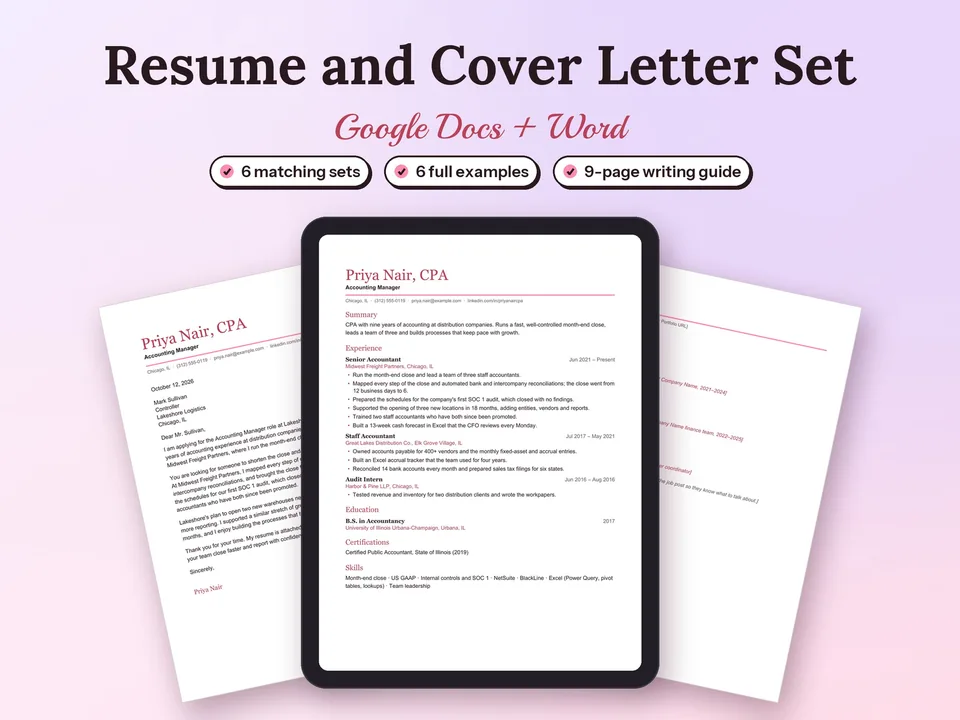
For a matching cover letter and references page in the same design, see our resume and cover letter templates for Google Docs.
Questions people ask
How do I change templates in Google Docs?
Google Docs keeps your text and the template's design together in one file, so switching designs means opening the new template and moving your content in. Open the new template from Template gallery (or with Make a copy), then paste each section over its sample text with Edit, then Paste without formatting, so the new fonts and spacing apply. Keep the old file as a backup until you're done.
Is there a 100% free resume builder?
Yes. Google Docs itself is free with a Google account, and its Template gallery includes resume designs. Our free Google Docs resume templates (Classic, Modern and Minimal) open with Make a copy, and our free resume builder lets you fill in a form and download Word or PDF. Simple Resume & CV Builder is a free iPhone app with 12 resume templates.
What is the 30 second rule for resume?
The 30 second rule is a rule of thumb that a recruiter decides within the first half minute whether to keep reading. In practice it means putting your strongest information in the top third of the page: your name and contact details, a two-line summary, and your most recent, most relevant job with results-focused bullets.
What are 5 common mistakes people make on their resume?
Five common ones: typos and inconsistent dates, bullets that list duties instead of results, one generic resume sent to every job, layouts with tables or text boxes that applicant tracking systems misread, and a file name like 'Resume final 3.docx.' Fix them by proofreading aloud, adding numbers, tailoring the summary and skills, using one column, and naming the file with your name.
How do you make a resume on Google Docs for free?
Sign in to Google Docs with a free Google account, click Template gallery at the top right, and choose a resume design, or open one of our free resume templates with Make a copy. Type over the sample text, then click File, Download, PDF Document. No paid plan or add-on is needed at any step.
How do you make a resume on Google Docs as a high school student?
Start from a simple one-column template and lead with Education: school, expected graduation year and a strong GPA. Then add part-time jobs, babysitting, volunteering, sports, clubs and school projects, each with one or two bullets showing what you did and what came of it. Finish with skills such as languages and software, and keep it to one page.
Can I download a Google Docs resume as a Word file?
Yes. Open the resume, click File, then Download, then Microsoft Word (.docx). The file opens in Word, Word on the web and Apple Pages. Check the spacing once after it opens, because fonts and line breaks can shift slightly between programs. For most online applications a PDF is the safer choice.